



Unbox a new laptop, sign into Windows for the first time, and you’re already greeted by a desktop full of icons you never chose. Trial antivirus software, manufacturer utilities, random productivity suites, maybe a game or two. None of it was requested. All of it is sitting there, often running quietly in the background from the very first boot.
This is bloatware, and most people either ignore it entirely or try to remove it the wrong way, leaving behind more clutter than they started with. Knowing what it is, why it slows your PC down, and how a proper uninstall tool clears it out safely is the difference between a clean setup and months of accumulated junk.
What Counts as Bloatware, and Why It’s There
Bloatware falls into two general categories. The first is manufacturer-installed software: utilities from the PC maker meant to help with driver updates, system diagnostics, or device-specific features. The second is third-party trial software, often included through licensing deals or commercial partnerships between the manufacturer and software companies looking for exposure.
Whether something counts as genuinely useful or just clutter is subjective. A diagnostic tool from your laptop’s manufacturer might be worth keeping. A 30-day trial of an antivirus suite you’ll never activate almost certainly isn’t.
Why It Actually Slows Things Down
Not all bloatware affects performance the same way. Software that simply sits on your drive without running mostly just takes up storage space, a nuisance, but not a performance problem on its own.
The real impact comes from programs that launch automatically at startup and continue running in the background. These compete for memory and processor time the moment you turn your PC on, which can noticeably slow down boot time and make multitasking feel sluggish, even on otherwise capable hardware. You can get a sense of this yourself by opening Task Manager and checking the Startup Apps tab, where it’s common to find a surprising number of programs set to launch automatically that you never actively chose to install.
Why Removing It Isn’t as Simple as Deleting the Folder
Here’s where people run into trouble. Bloatware doesn’t exist in isolation, it often integrates with Windows in ways that aren’t obvious from the surface. Some of it includes manufacturer utilities tied to driver management or hardware-specific features. Removing the wrong thing, or removing it the wrong way, can create more problems than it solves.
A few things worth being cautious about:
- Certain core Microsoft components are required for Windows to function properly, and removing them can cause system instability
- Manufacturer utilities and system-critical drivers shouldn’t be deleted carelessly, since some device features may depend on them
- A program running in the background should be closed before attempting to remove it
- If you’re unsure what a piece of software actually does, it’s worth checking its name and publisher before deciding to remove it
This is exactly why simply deleting a program’s folder, rather than properly uninstalling it, is a bad habit. It skips the steps that would otherwise clean up startup entries, background services, and registry references, leaving your system in a messier state than before.
Where a Dedicated Tool Makes the Difference
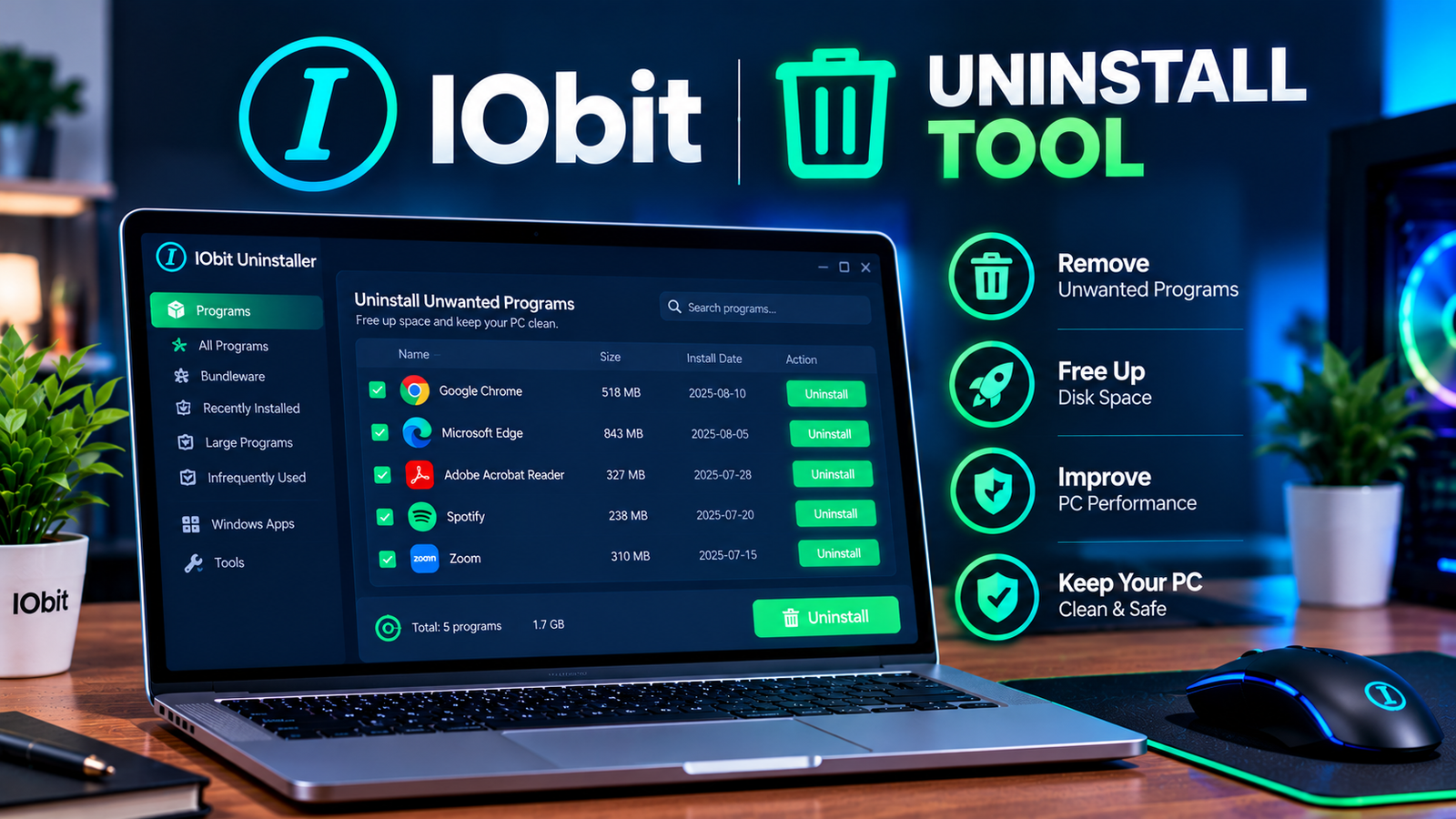
This is where a proper uninstall tool earns its place in your PC maintenance routine. Rather than relying on Windows’ basic removal process, which doesn’t always catch every trace a program leaves behind, a dedicated uninstaller is built specifically to track what a piece of software actually installs and remove it thoroughly.
IObit has spent years building practical, everyday utilities for exactly this kind of PC maintenance, and its approach to software removal reflects that focus: give users a safer, more complete way to handle a task that’s easy to get wrong manually.
Its uninstall tool scans for the full footprint of installed programs, not just the obvious entries, and removes bloatware, trial software, and unwanted utilities more thoroughly than the default Windows process. For a new PC loaded with preinstalled software you never asked for, running a proper uninstaller once, early on, is a far more effective starting point than picking through each program individually and hoping nothing important gets left behind or broken in the process.
A Practical Approach to Cleaning Up a New PC
A sensible first-week routine for any new computer looks something like this:
- Open Task Manager and review what’s set to launch at startup before touching anything else.
- Identify software you clearly don’t recognize or need, and research anything you’re unsure about before removing it.
- Use a dedicated uninstall tool rather than deleting folders manually, so leftover files and registry entries don’t accumulate from day one.
- Leave core Windows components, drivers, and manufacturer utilities tied to actual hardware features alone unless you’re certain they’re unnecessary.
Frequently Asked Questions
Does bloatware really slow down a new PC? Yes, but only the portion that runs in the background or launches at startup. Software that simply sits unused on the drive mostly affects storage, not speed.
Is it safe to delete a bloatware folder manually? Not reliably. Deleting a folder without uninstalling properly often leaves behind registry entries, startup tasks, and background services, which is exactly what a dedicated uninstall tool is built to catch.
What’s the best way to clean a new PC in the first week? Review startup programs in Task Manager, identify software you don’t recognize, and run a proper uninstall tool instead of removing things one by one by hand.
Final Thoughts
A new PC shouldn’t come with a cleanup project attached, but in practice, it usually does. Understanding what bloatware actually is, why some of it slows your system down while other parts just sit idle, and how to remove it properly rather than haphazardly, makes a real difference in how your machine performs from day one. A dedicated uninstall tool from a trusted developer like IObit turns what could be a risky, guesswork-driven process into a straightforward one, and it’s one of the simplest habits to build into setting up any new computer.